AI Training Studio lets you generate a full cybersecurity training module in minutes — starting from a prompt, a topic, an existing module, or an uploaded PDF. The AI uses your organization’s context (policies, tone, industry profile) to tailor the content, so you get a draft that’s ready to review rather than a generic template.
This article covers the AI-generated module flow. For importing a SCORM package or other features inside the Training Studio, see the related articles at the end of this page.
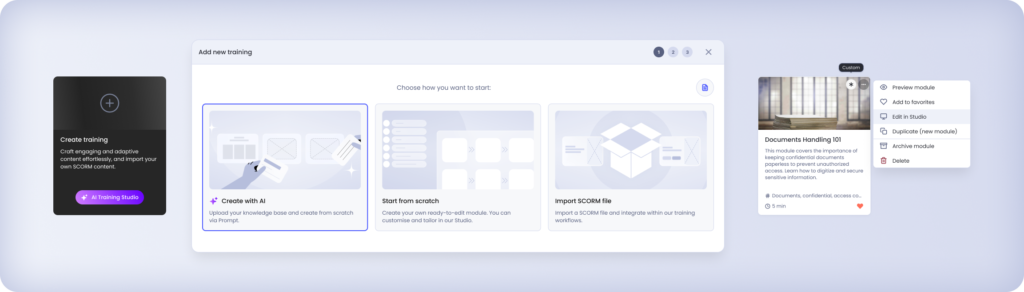
Before you start
Add your organizational context (recommended, L1 Admin only) If your organization has uploaded policies, tone guidelines, or an industry profile in Knowledge Base Settings, AI Training Studio applies this context automatically to every module you generate — you don’t need to re-upload it each time. If you haven’t set this up yet, you can still generate modules; they just won’t reflect your organization’s specific context. See Knowledge Base Settings for how to add this.
Step 1: Choose your starting point
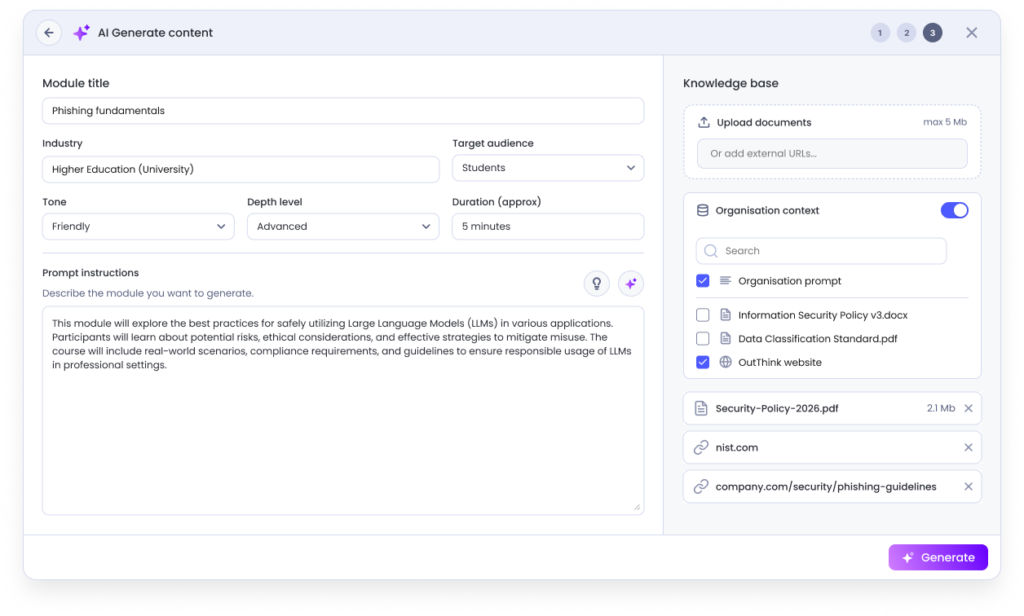
From the module creation menu, select Generate with AI, then choose how you want to start:
- Module details — tailor your module to your selected Industry, Audience, Tone needed, Depth and Duration.
- Prompt — describe the topic and angle you want in free text.
- Uploaded PDF — upload documents (a policy, an article, existing training material) for the AI to build from.
The AI generates a full module definition from your chosen starting point, guided by platform quality standards for length, structure, and difficulty — you don’t need to specify these yourself.
Step 2: Verify module structure and adjust
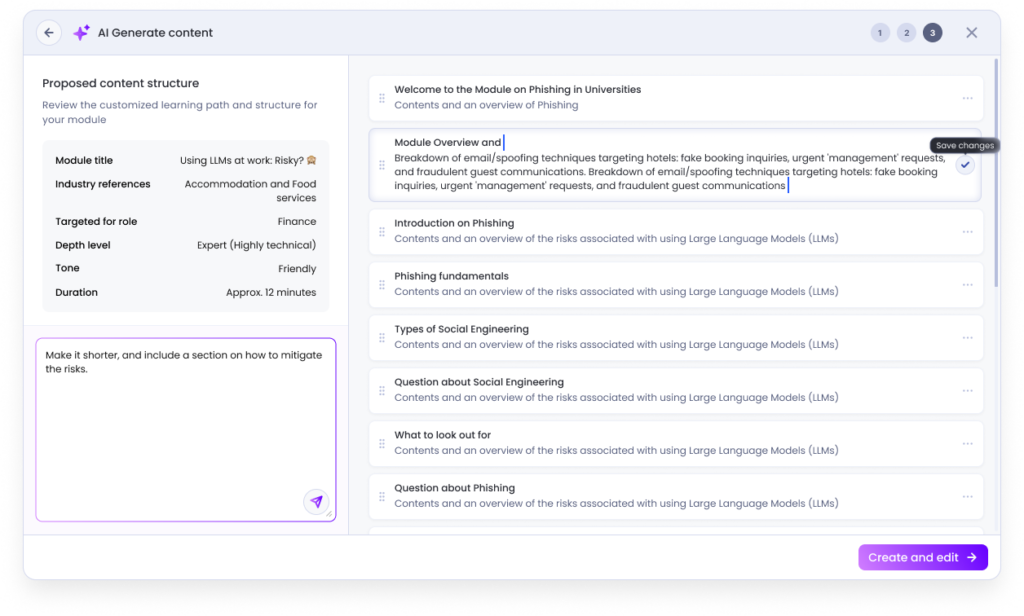
With all the information provided, the AI will suggest a module structure, which you can prompt further
Once you are happy with the structure, click on Create the module and you will be directed to the Training Studio, where you can do further edits and tailor your module.
Step 3: Edit in Training Studio
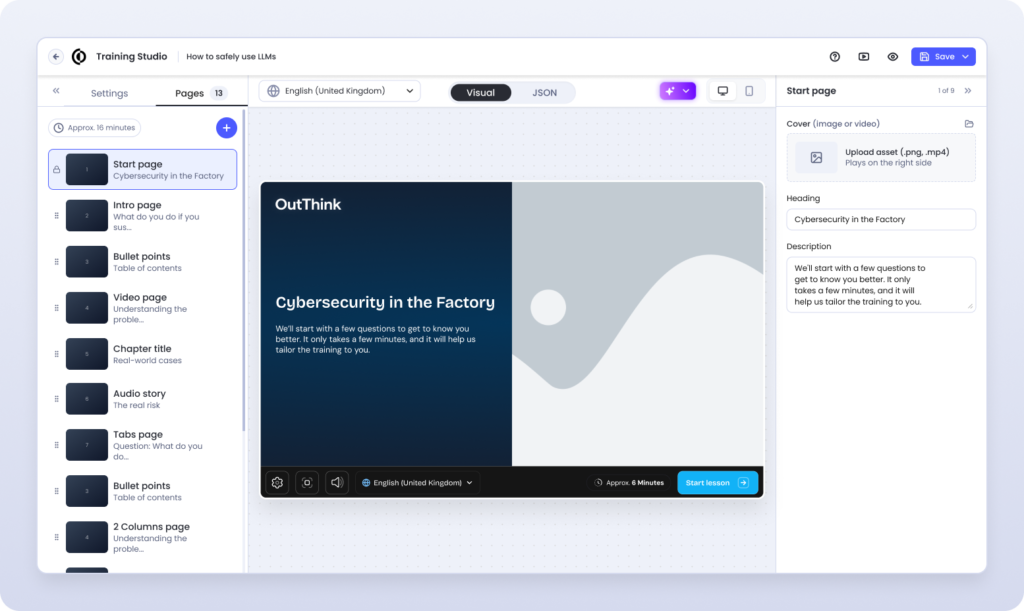
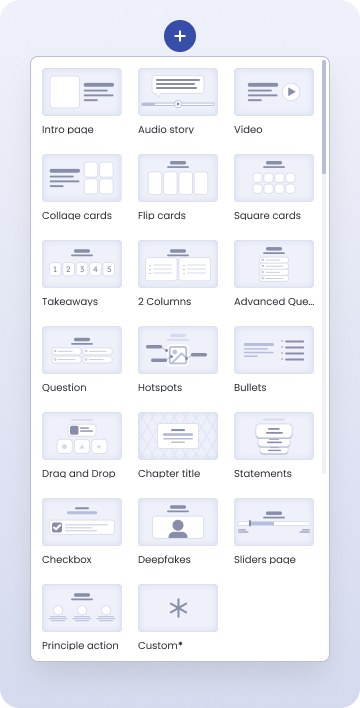
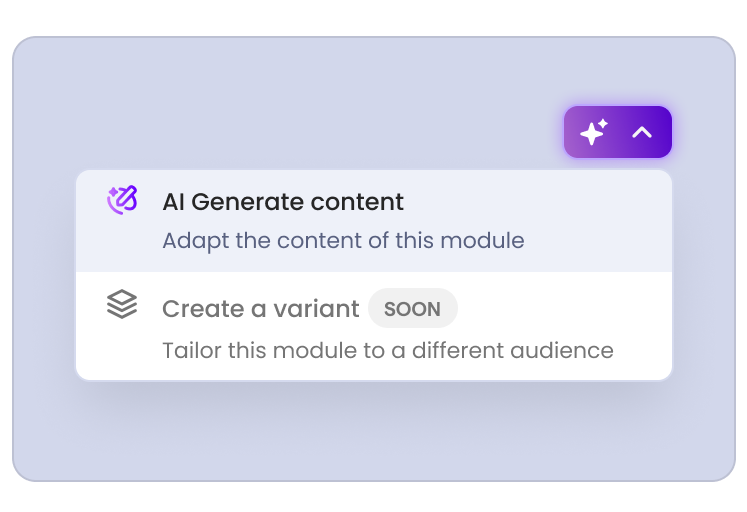
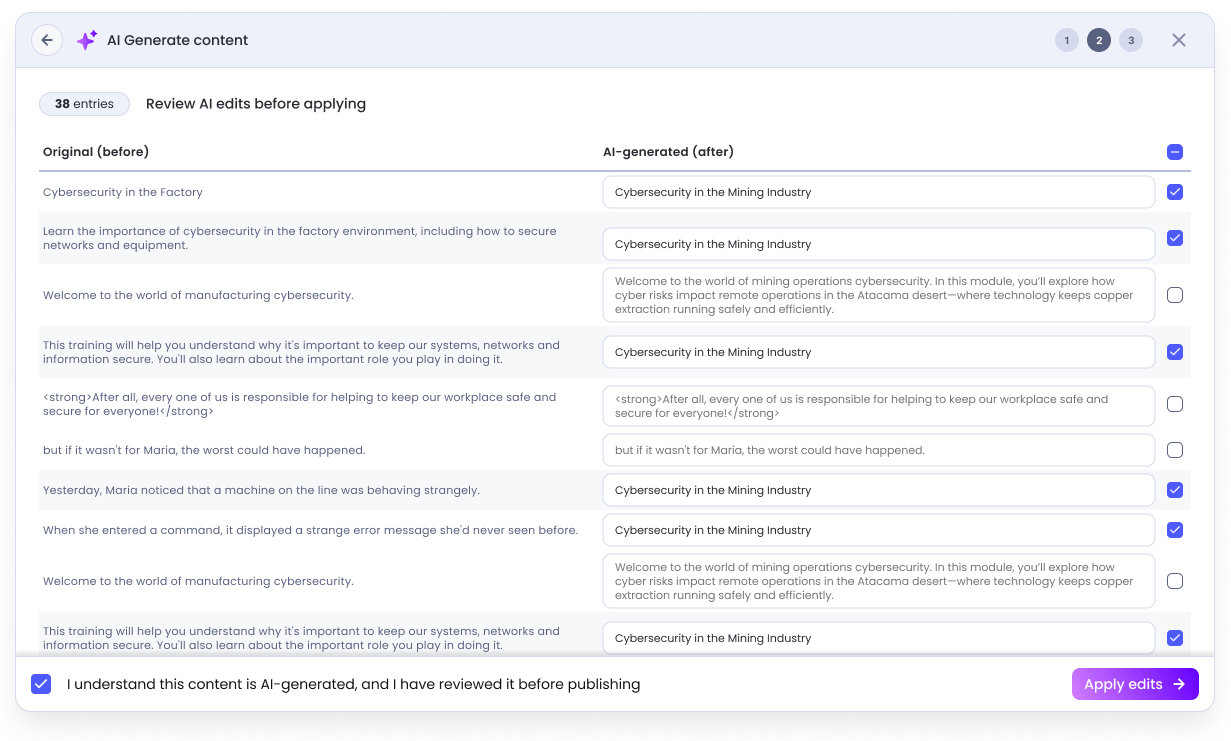
In the Training Studio you can edit your content further, including adding assets (video, audio, images), modifying the structure, adding pages, questions, etc. You can use again the AI Generate content feature which will suggest new copy for your content.
3.1 Module details and structure
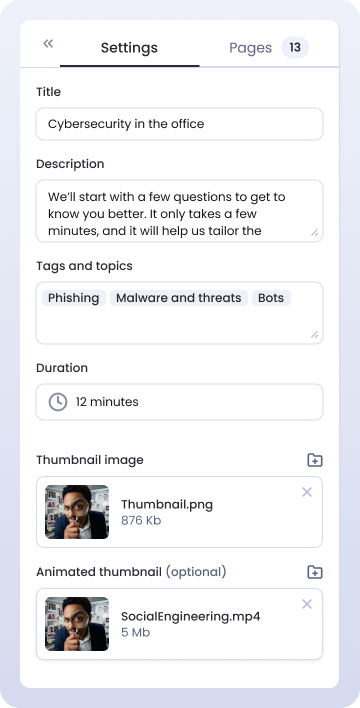
Use the Settings tab for adjusting the Name of the module and description, the tags (for easier finding in the Content Library), adjusting the duration and adding a Thumbnail image for regognizing your module.
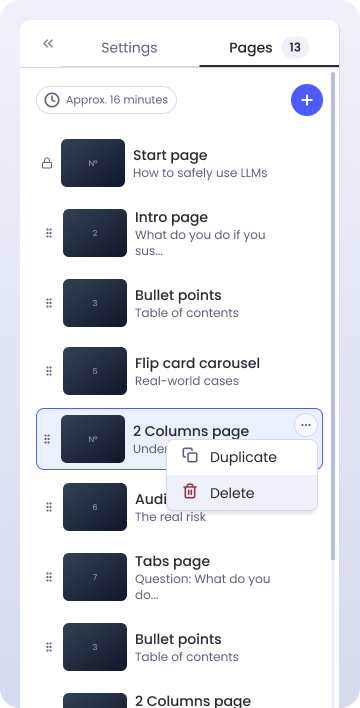
From the Pages tab, you can adjust the structure, duplicate pages, add new ones, delete pages. The Start and End page cannot be deleted since they include the campaign handlers such as Module Started and Module Completed.
3.2 Review and edit the draft
Every AI-generated module is saved as a draft — nothing is visible to learners until you publish it. Use this stage to:
- Review AI edits as suggestions. If you ask the AI to edit an existing module, changes appear as suggestions you can accept or reject individually — nothing is applied automatically.
- Swap out media. Replace any image or video with your own upload or an item from the built-in asset library (~100 images, icons, and videos). Media changes are saved as draft edits and only go live once you publish.
- Adjust pages and module structure: Drag the pages, duplicate, delete them; make sure the module will play exactly as you envisioned it!
3.3 Translating into more languages
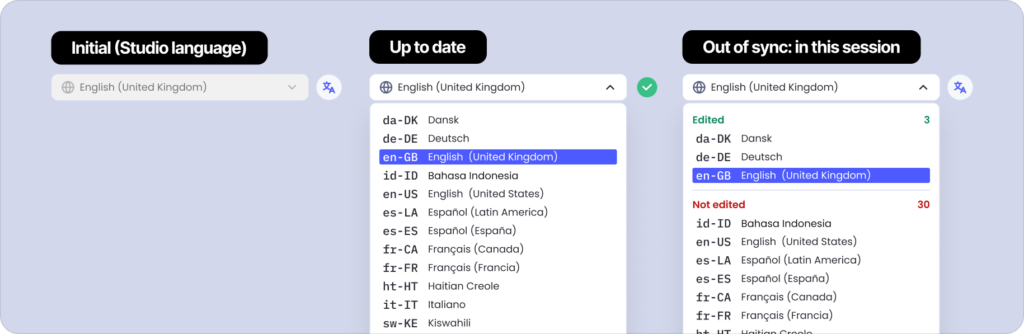
Once you are happy with the content of your module, you can select and translate into 39 languages.
Step 4: Saving and publishing
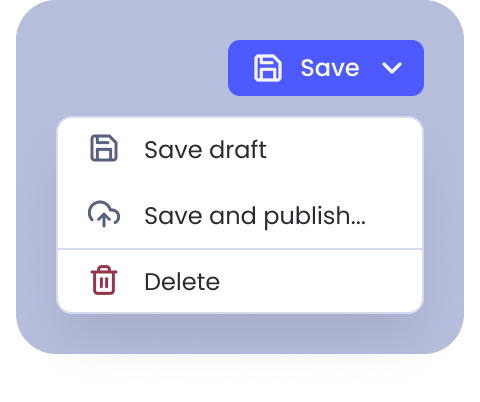
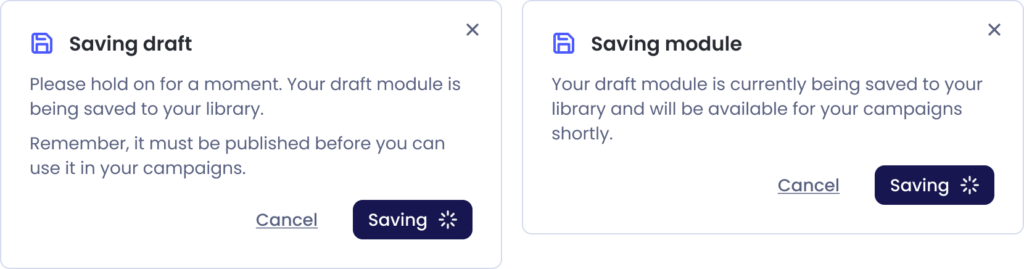
When the draft is ready, save your module and publish it. The module is now visible to learners if added to a campaign, and can be used by admins with access. You can make further edits when needed.
FAQ
Related articles
- Setting up your Knowledge Base (organizational context)
- Importing a module from SCORM
- Generating Deepfakes content