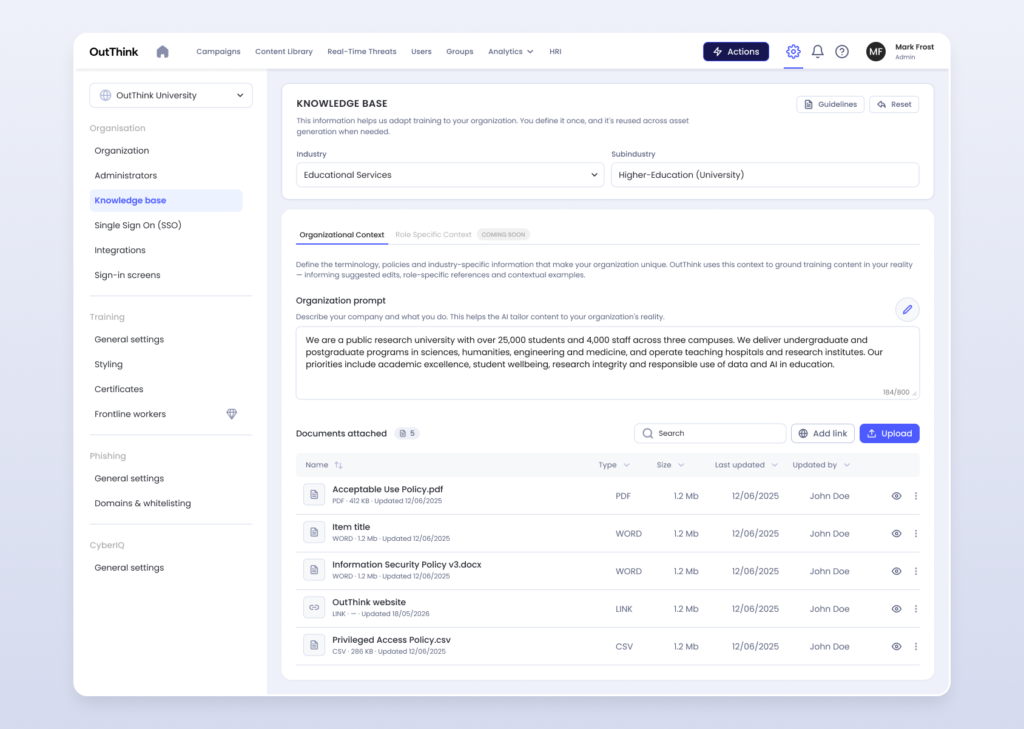
The Knowledge Base lets you define your organization’s context once and reuse it across AI-powered asset generation. Instead of re-explaining who you are every time you generate a training module, you set it up here — and OutThink’s AI grounds its output in your organization’s reality automatically.
You’ll find it under Settings → Organisation → Knowledge base.
Why use the Knowledge Base
When the AI generates training content, it produces stronger, more relevant material if it understands your industry, your terminology, and your policies. The Knowledge Base is where you supply that understanding. Set it up properly and every generated asset reflects who you are, the language your people use, and the rules they’re expected to follow — without you repeating yourself.
Setting your industry
At the top of the page, select your Industry and Subindustry from the dropdowns.
These two fields tell the AI what sector you operate in and the more specific niche within it (for example, Educational Services → Higher-Education (University), or Educational Services → Highschool). The AI uses this to draw on sector-relevant threats, scenarios, and examples when it builds content. A phishing example aimed at a university finance team looks different from one aimed at a hospital, and this is where that tailoring begins.
Organizational Context
Below the industry settings is the Organizational Context tab. This is where you describe your organization in your own words and attach supporting material.
Organization prompt
The Organization prompt is a free-text field where you describe your company and what it does. Click the pencil icon to edit it. A good prompt covers what your organization is, who it serves, and what matters most to it.
For example:
We are a public research university with over 25,000 students and 4,000 staff across three campuses. We deliver undergraduate and postgraduate programs in sciences, humanities, engineering and medicine, and operate teaching hospitals and research institutes. Our priorities include academic excellence, student wellbeing, research integrity and responsible use of data and AI in education.
The field has an 800-character limit, and a counter in the corner shows how much you’ve used. Aim for specific, factual detail over atmosphere — concrete information about your size, structure, and priorities gives the AI more to work with.
Documents attached
Beneath the prompt, you can attach supporting documents and links. These give the AI deeper, source-level context — your actual policies, terminology, and reference material — rather than just a high-level description.
You can:
- Upload files using the Upload button. Supported types include PDF, Word, and CSV.
- Add link to reference a web page, such as your organization’s public website.
Each item in the list shows its name, type, size, when it was last updated, and who updated it. Use the Search box to find a specific document, and the column headers to sort the list. The eye icon lets you preview an item, and the three-dot menu gives you further actions.
Good documents to attach include your Acceptable Use Policy, Information Security Policy, Privileged Access Policy, and any other materials that define how your organization expects people to behave around security.
Role Specific Context
You may notice a Role Specific Context tab marked Coming Soon. This will let you define context for particular roles within your organization, so generated content can be tailored not just to your org but to specific job functions. It isn’t available yet.
Resetting and guidelines
At the top right of the page:
- Guidelines opens guidance on how to fill in the Knowledge Base effectively.
- Reset clears your current entries. Use this with care, as it removes the context you’ve defined.