Import your existing SCORM training content into OutThink CC and assign it to users just like any other training module.
Your existing training content now belongs in one place. Upload SCORM files directly into the OutThink content library and they are automatically validated, wrapped for tracking, and surfaced alongside native modules. This allows you to bring existing training into a single unified program without rebuilding content, while maintaining consistent visibility into completion and engagement across your entire training ecosystem.
To upload an existing SCORM file into OutThink, navigate to the Training section of the Content Library and choose the Create training option. Choose Import SCORM file:
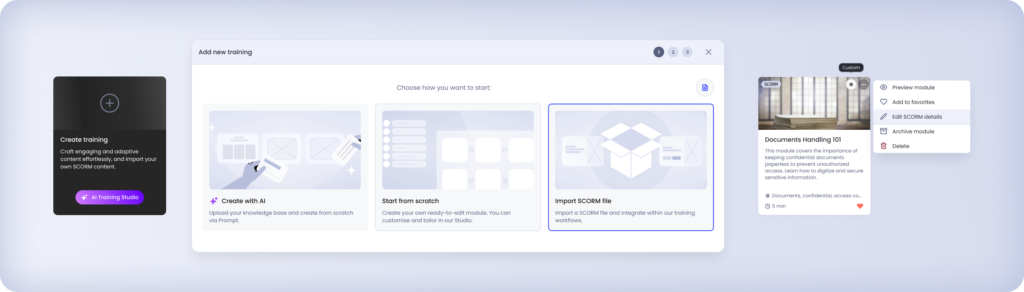
It is then possible to:
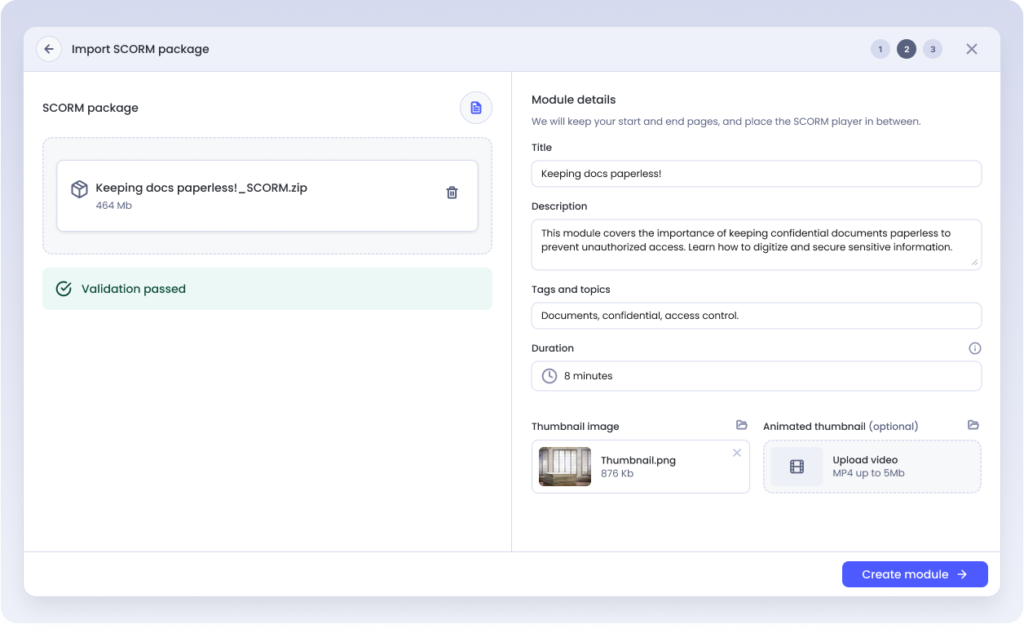
- Import the SCORM file, which must be compatible with SCORM versions 2004 or 1.2. Maximum file size is 100MB. As part of the import process, the file will be validated that it matches the necessary formats.
- Provide a title for the module, and a description.
- Tag the module so it is easily searchable via the filters in the Content Library.
- Provide a duration for the expected module length, in minutes.
- Supply a thumbnail for the Content Library view.
What is SCORM support?
SCORM support allows administrators to upload SCORM 1.2 and SCORM 2004 packages into the OutThink Content Library and deliver them through campaigns alongside native OutThink training content.
Once uploaded, SCORM modules can be assigned to users and tracked within the platform. OutThink records when learners start and complete the module, making it easier to incorporate existing training investments into your security awareness programme.
This guide is for LMS administrators and content owners who upload SCORM packages into OutThink.
It explains, in plain language, what kinds of packages work best, what warnings mean, and what completion looks like for learners.
Quick Summary
- Best fit: a self-contained SCORM 1.2 or SCORM 2004 ZIP package with one clear launchable course.
- Best chance of success: all required files are inside the ZIP, `imsmanifest.xml` is at the top level of the ZIP, and the package does not depend on popups or outside websites.
- Warnings do not always mean the package is broken, but they do mean extra testing is needed before rollout.
- In this embedded-player model, OutThink is effectively tracking completion only. Other SCORM data passed by the package is not retained as supported platform data.
- Completion in the SCORM package is what allows the learner to move forward in the surrounding OutThink module.
What usually works best
Packages are most likely to upload and run cleanly when they have all of the following characteristics:
- The package is SCORM 1.2 or SCORM 2004.
- The upload is a normal ZIP file.
- The ZIP contains `imsmanifest.xml` at the root level.
- The package has one main launchable SCO rather than multiple alternative launch paths.
- All files needed to run the course are included inside the ZIP.
- The package does not depend on popups, parent-window access, or external services.
In practical terms, the current platform works best with single-launch, self-contained SCORM packages.
What Will Stop An Upload
The platform rejects the upload when there is a hard validation problem. Common examples are:
- The file is not a readable ZIP archive.
- `imsmanifest.xml` is missing from the root of the package.
- The manifest is malformed or does not declare SCORM 1.2 or SCORM 2004.
- The manifest does not point to one valid launchable course item.
- The launch file listed in the manifest is missing from the ZIP.
- The package structure requires the platform to choose between multiple launchable paths or SCOs.
- The archive is unsafe to extract, for example because of invalid paths or symbolic links.
There are also upload-size and archive-safety limits. In the current checked-in defaults, uploads are rejected when they exceed limits such as:
- ZIP file size above 100 MiB
- Total unpacked size above 200 MiB
- Any single unpacked file above 50 MiB
- More than 10,000 archive entries
For SCORM 2004 packages, there is one extra rule: packages that rely on SCORM 2004 sequencing or navigation metadata are rejected by the current upload pipeline.
What warnings mean
Some packages upload successfully but still receive warnings. A warning means the package was accepted, but it appears to depend on behavior that should be tested carefully in the embedded player.
Warnings are especially important when the package appears to rely on:
- Files or services hosted outside the ZIP
- Popups or communication with another browser window
- Access to the parent page or top-level browser window
- Logic that tries to break out of the embedded frame
- Broader SCORM tracking features such as interactions, objectives, comments, or navigation requests
The safest way to interpret a warning is: the package may still work, but you should not roll it out without testing it in conditions that match your learners’ real environment.
What To Do If You See A Warning
If a package uploads with warnings, the most useful next steps are:
- Ask the vendor whether the package requires popups, parent-page access, or frame escape behavior.
- Ask the vendor whether the package depends on external URLs, APIs, CDNs, or websocket services.
- Ask the vendor whether the package relies on advanced SCORM features such as objectives, interactions, comments, or navigation requests.
- Test the package in the same browser, network, and embedding conditions your learners will actually use.
What completion looks like for learners
In the current embedded-player model, the SCORM package and the surrounding OutThink module work together.
In practical terms, this means OutThink is using the SCORM package to determine completion only.
- While the learner is inside the embedded SCORM activity, the host navigation stays unavailable.
- When the package first reports that the learner has completed, passed, or failed the activity, the host page becomes ready to move on.
- At that point, the learner can use the host Next button again.
- In most wrapped SCORM modules, the next page after the SCORM activity is the module’s final page by authoring convention.
- When the learner moves forward through that host-side completion step, OutThink records the module as completed for campaign progress.
The important practical point for administrators is that the SCORM package must report a terminal completion result. If it does not, the learner may not be able to progress normally from the SCORM page. Other SCORM data points may pass through the API during the session, but in this model they are not kept as supported progress, resume, score, or reporting data.
What the current embedded player does not support
In the current embedded-player model, OutThink does not support the following as platform features:
- Raw score reporting
- Bookmarking or lesson location
- Suspend data or resume state
- Exit state
- Session time reporting
- Interaction tracking
- Objectives tracking
- Learner or LMS comments
- Navigation requests
Apart from terminal completion status, SCORM data sent through the API is effectively discarded by this player model. Some packages may still write these values during the learner’s session, but OutThink does not use them to persist learner state, drive progression, or surface reporting.
If any of those features matter to your rollout, treat that as a compatibility gap and confirm with the vendor before launch.
Questions to ask your vendor before you upload
These questions usually surface the most important compatibility issues early:
- Is the package SCORM 1.2 or SCORM 2004?
- Is the package fully self-contained, with all required assets inside the ZIP?
- Does it open popups or rely on communication with the parent page or top-level window?
- Does it depend on external websites, APIs, CDNs, or other hosted services?
- Does it rely on advanced SCORM features such as objectives, interactions, comments, navigation requests, bookmarking, or score reporting?
- What exact learner outcome marks the activity as complete: completed, passed, failed, or something else?
Quick checklist before upload
Use this as a quick pre-flight check:
- The file is a normal ZIP archive.
- `imsmanifest.xml` is at the root of the ZIP.
- The package clearly launches one main course.
- The launch file named in the manifest is present in the ZIP.
- The package does not depend on popups or parent-window access.
- The package does not depend on external services unless you have tested those dependencies.
- The package has been tested in a staging or trial environment before rollout.
Short glossary
- `SCORM`: A standard format used to package e-learning content.
- `imsmanifest.xml`: The manifest file that tells the platform how the package is structured and what it should launch.
- `SCO`: A launchable learning unit inside a SCORM package. In this platform, packages work best when there is one clear SCO to launch.