OutThink’s AI Content Editing feature allows you to quickly refine, rewrite, or personalize your cybersecurity awareness content using built‑in generative AI. This helps you deliver clearer, more effective, and more engaging messages, without needing external tools or manual copywriting effort.
This guide explains what the feature does, how to use it, and best practices for getting high‑quality results.
What Is AI Content Editing?
AI Content Editing is an integrated tool that enhances training modules by applying intelligent text improvements. With a few clicks, you can:
- Improve clarity and tone
- Shorten or expand text
- Localize messages for different audiences
- Rewrite content to match organizational style
- Update content to represent organizational policies, which you can upload
AI Content Editing ensures your security training are tailored to your workforce’s needs.
Where You Can Use It
You’ll find the AI Content Editing option via the ‘Edit Content’ button for each module in the Content Library:
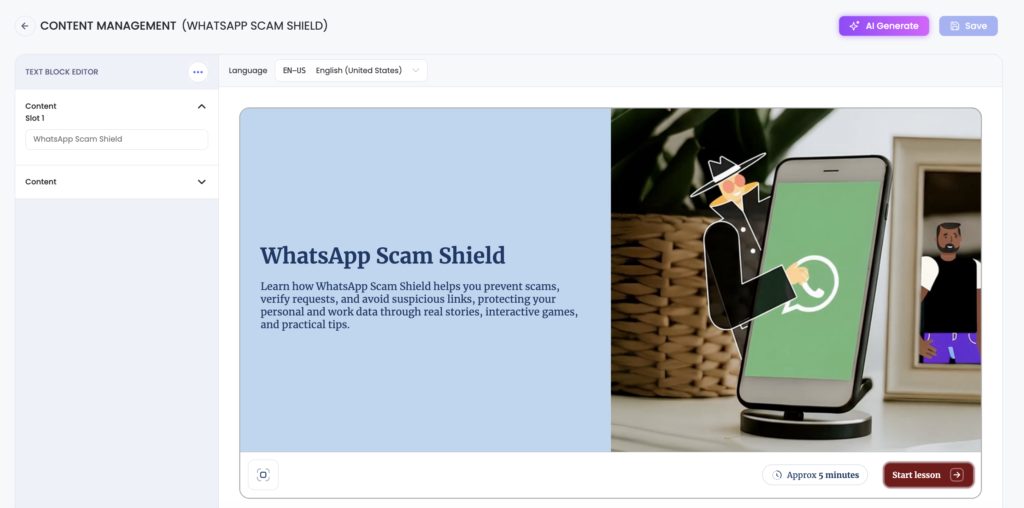
When editing content, the AI Generate button appears at the top right of the screen.
How to Use AI Content Editing
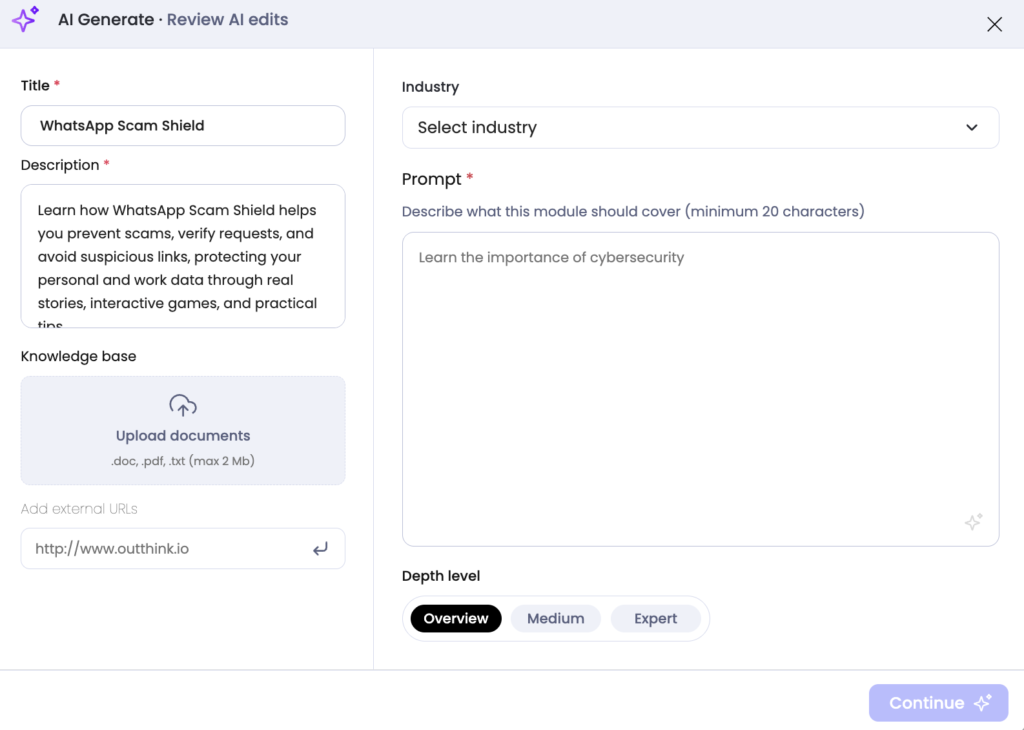
- Click the AI Generate button in the module you wish to edit.
- Choose the industry which aligns with your organization – this will feed into the situational context.
- Provide a prompt as to how to update the content. As with all AI LLMs, the better the prompt you can provide, the more valuable the output.
- You can also upload a policy document or reference a URL, referring to them in your prompt to instruct the AI to adapt your content based on material provided.
- Depth level allows you to tell the AI whether to keep the output high-level, or to go into deeper detail, as applicable to your intended audience.
- Press the Continue button.
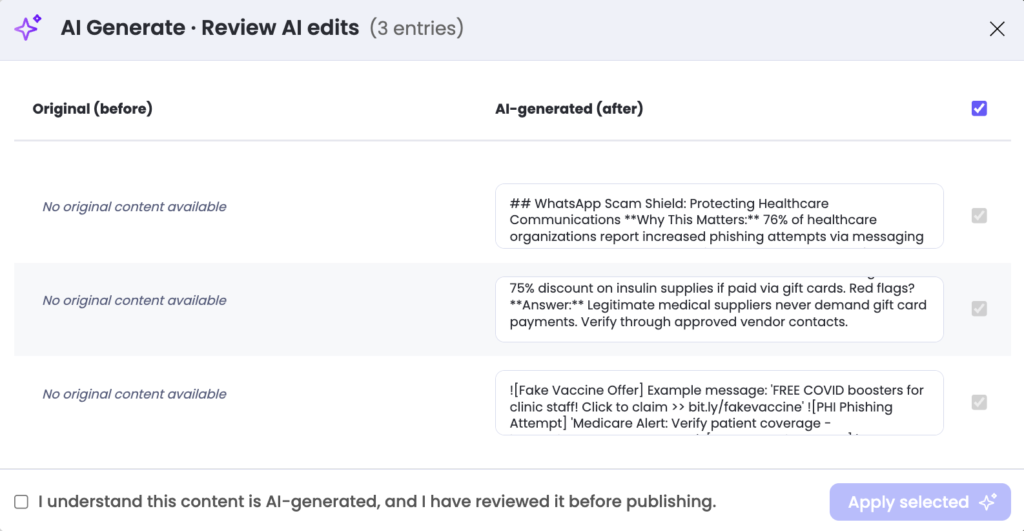
Once the AI has generated the output, you will be able to select which alterations you choose to use via the check boxes. Once selected, click the Apply selected button to update your content.
Once the changes are applied, you will resume in the standard content editing view. This enables you to check how the edits appear on each screen, and to apply the translations needed, using the standard editing functionality. NB: It is important to review the edits as you would for any AI usage – check for accuracy, applicability and presentation of output.
Save and publish your changes to send your edits into “live” status so they are visible to end users.